Deliverability
The red question mark next to your name in Gmail, and how to remove it
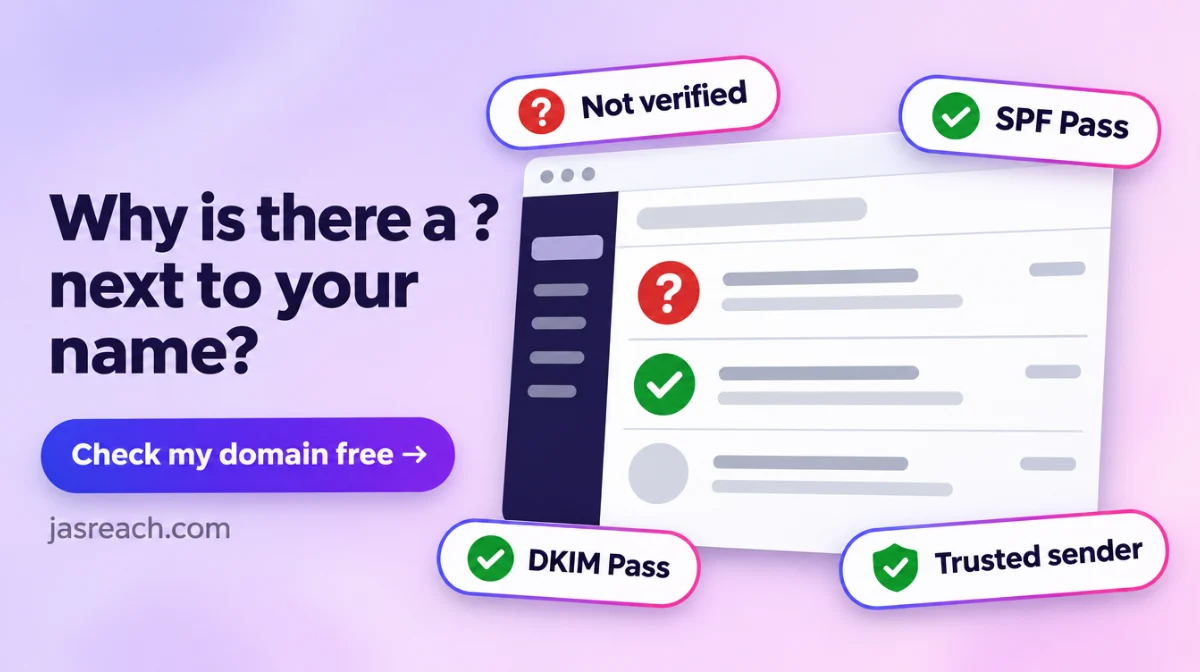
By the JasReach team. Updated . 6 min read.
When Gmail can’t prove an email is from you, it swaps your photo for a red question mark and tells the reader to be careful replying. You won’t see it yourself. Your prospects do.
? in place of your photo means Gmail couldn’t authenticate your email (source).
Short answer
Gmail shows a question mark next to the sender’s name when a message isn’t authenticated, meaning it couldn’t confirm the email came from the domain it claims, using DKIM or SPF. Google tells readers to be careful about replying to such messages. Fix it by listing your sending service in your SPF record, switching on DKIM for your domain, and adding DMARC, then check a test email with Show original.
Key takeaways
- The question mark means Gmail couldn’t authenticate the email with DKIM or SPF.
- Google tells readers to be careful replying to these messages, which is the opposite of what cold email needs.
- You only see it from the recipient’s side, so test by sending to a Gmail address you own.
- DKIM signed with your own domain is the most reliable fix.
Cold email lives or dies on trust in the first second. A red question mark where your face or logo should be breaks that trust before a word is read, and Gmail adds a hover note saying it couldn’t verify your domain actually sent the message. Here’s what causes it and how to make it go away for good.
What the question mark means
Google’s help pages are plain about it: if you see a question mark next to the sender’s name, the message isn’t authenticated. Gmail doesn’t know whether it really came from the person who appears to have sent it, so it tells readers to be careful about replying or downloading attachments.
Gmail authenticates with two standards. DKIM is a digital signature on the email, checked against a key in your DNS. SPF is a list in your DNS of the servers allowed to send for your domain. If neither passes for your domain, you get the question mark.
Why it costs you replies
- It replaces your photo or logo, the one friendly signal a stranger sees.
- Hovering over it shows that Gmail couldn’t verify your domain sent the message.
- Unauthenticated email is more likely to be filtered to spam in the first place.
- Google now requires every sender to authenticate with SPF or DKIM.
How to check your own emails
- Send a normal email from your sending mailbox to a Gmail address you own.
- Open it in Gmail on a computer. If a question mark replaces the sender’s photo, it isn’t authenticated.
- Click the three dots and choose Show original.
- Look at the SPF, DKIM and DMARC lines at the top. You want PASS, with your own domain next to them.
- Click the arrow under the sender’s name: an authenticated email shows "mailed-by" and "signed-by" with your domain.
The usual causes
| What you see | Likely cause | Fix |
|---|---|---|
| SPF: FAIL or NEUTRAL | The service that sends your email isn’t in your SPF record | Add its include to your single SPF record |
| DKIM: none | DKIM was never switched on for your domain | Turn it on in your email provider and publish the key |
| DKIM: PASS, but another domain | Your sending tool signs with its own domain | Set up custom DKIM for your domain in that tool |
| Everything passes but via another domain | You send through a website form or a forwarding service | Send from your real mailbox, or authenticate that service for your domain |
The fix, step by step
Tip: If your domain uses Hostinger’s nameservers, Hostinger adds the SPF record for Hostinger Email by default. You may only need DKIM and DMARC.
- Find out which service actually sends your emails: Google Workspace, Microsoft 365, your host’s email, or a sending tool.
- Make sure your one SPF record includes it, for example include:_spf.google.com for Google Workspace.
- Switch on DKIM for your domain inside that service and publish the TXT record it gives you.
- Add a DMARC record, starting with p=none, so receivers know your policy.
- Wait for DNS to update, then repeat the Gmail test above.
Questions people ask
Will the question mark disappear for emails I already sent?
No. Gmail judges each email when it arrives. Emails sent after your records are fixed will show your photo again.
Is SPF alone enough?
It can remove the question mark, but DKIM is more reliable because it survives forwarding. Google recommends DKIM, and bulk senders need both plus DMARC.
How do I get my logo to show instead?
Once you authenticate, Gmail shows your Google profile photo if you have one. A logo in the inbox for all readers needs BIMI, which requires DMARC at quarantine or reject first.
Do Outlook and Yahoo do something similar?
Each has its own way of flagging unverified senders, and all three require authentication from bulk senders. The same three records fix all of them.